
Using the Payment Status Filter
To filter reservations by payment status:
- Open the Occupancy Dashboard.
- Click the filter in the top-right corner of the dashboard.
- Select the payment status you would like to view.
The dashboard will update to show reservations matching the selected status.
Payment Statuses
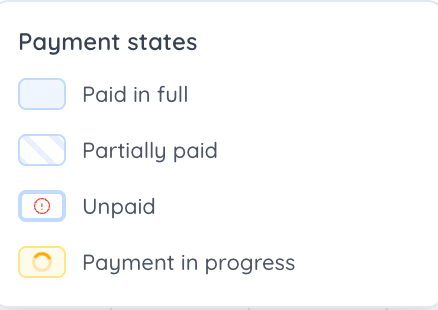
- Paid in full – Shown as fully filled. The reservation has been fully paid and no outstanding balance remains.
- Partially paid – Shown as partially filled. Part of the reservation amount has been paid, but an outstanding balance remains.
- Unpaid – Shown as unfilled with an exclamation mark. No payment has been received for the reservation.
- Payment in progress – Shown in orange with a loading symbol. A payment has been initiated but has not yet been completed or confirmed.
Additional Information
Payment status filtering is available alongside the existing colour-coded booking view. This allows you to switch between operational and payment-focused views depending on your needs, helping you quickly identify reservations that may require follow-up.